01
Install
Install software on workstations and server
Get up and running smoothly with InterAcct. Our structured, hands-on implementation process ensures your team masters the system from day one, minimizing downtime and maximizing long-term efficiency.
A common question we hear is: "If InterAcct is easy to use, why is there an implementation and training cost included?" Software setup involves more than just installing files—it’s about tailoring workflows, setting security permissions, and ensuring your team builds confidence through hands-on practice. You are always in control of the pace, learning by doing with your own live data and real-world scenarios.
Let's look at an implementation plan for a small construction company with 5-10 users.
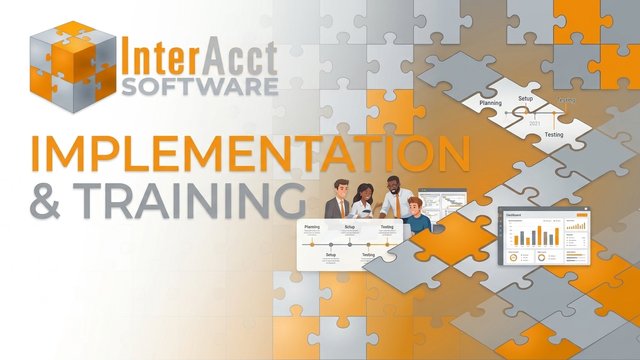
This is what a typical first day of an installation might look like, but each installation can be different, for example, we might have the software setup and installed on the cloud before the first day. Importing of Data can be done at this time if straight forward and doesn't need any tidying up, but generally this is not done on site.
Install software on workstations and server
Setup User codes and security for software
We cover an overview of the whole system to let people know what the software has in it.
Basics of navigation (add, change, search and delete)
Setup tables for clients (customer types, and categories etc.)
Setup (or import) employees for job costing
Add manually or import clients (depending on source data matching InterAcct structure)
Setup tables for Suppliers
Add manually or import suppliers. (depending on source data matching InterAcct structure)
Setup Tables for the structure of Product and Materials. Adding or importing product master files. (Normally left to do as homework)
Setup Cost Items for Machines, Subbies, Sundry, Labour and Hire Items.
At the end of Day 1, we set the homework needed before the next visit, typically this is improving the source data of master files, and navigating the system.
On the second day once the master files have been imported, added or at least we have enough for some training. We copy the Live data to Training and begin some training in the Training version of the system. This is a good chance to test the structure/tables we have setup in Live, and we can return to Live and correct if we see it is needed.
Login to the Training System, never "test" in the Live System.
Create a Client
Create a new Job
Create a Job Estimate from the Cost Groups and Items and Products we setup.
Create a Quotation, check the various formats.
Once approved, now let's convert the Estimate to Budget and create a Contract.
Create a variation to contract, get it approved.
Timesheets, Works Orders, Purchase Orders, Creditor's Invoices, Machine Usage Timesheets, Sundry Expense Recovery, Stock Issues.
Payments to suppliers including retention
Progress claims and invoices including retention
Receiving money in the Bank Account.
Leave a list of homework, mainly fixing any issues with the setup tables, and testing entering different test jobs.
On the 3rd Day, we would normally cover the Accounting and Payroll side of the software, and visit other areas which the customer is interested. Normally by this stage the clients are more familiar with how the system works and have worked out a lot of the functions themselves.
First step is normally to copy Live to Training so we have a fresh Training System with the new changes from Live, and clear the test data in Training.
Log in to the Training System
Banking, General Ledger and Financial Reports
Job reports and tracking
Scheduling and appointments
Debtors, Creditors, WIP Balances, General Ledger, Banking
Discuss and Outline further training needed.
Discuss any development which might be needed to get an estimate for this work.
Create a to-do list of what is needed to get the system Live.
With an active user at the keyboard learning new workflows, keeping a brisk pace ensures the core setup stays within a tight 3 to 4-day window.
We offer a ton of videos and documents which should help you navigate all the features in the system, and we do recommend you do on-line training to reduce your costs too and break up your training into smaller blocks of time.
This video covers what we have discussed above with a typical Implementation